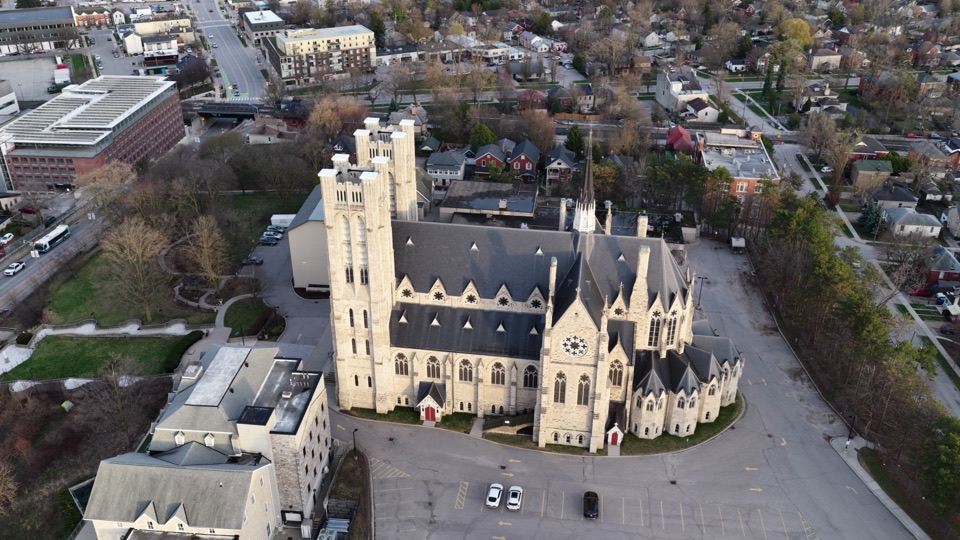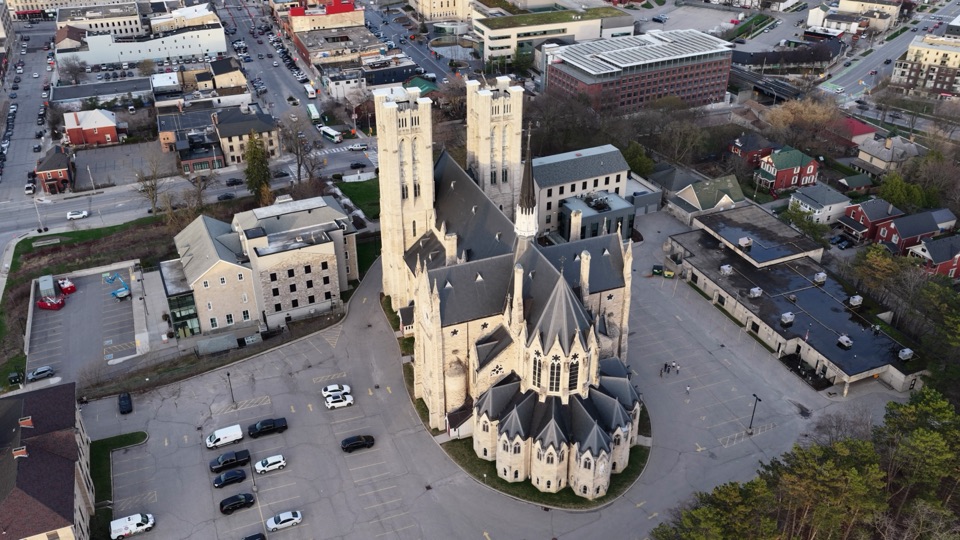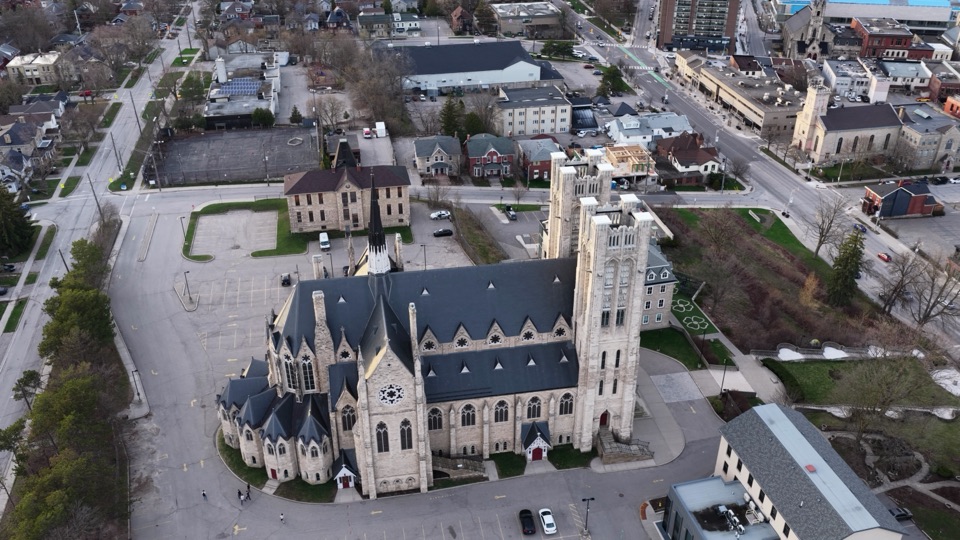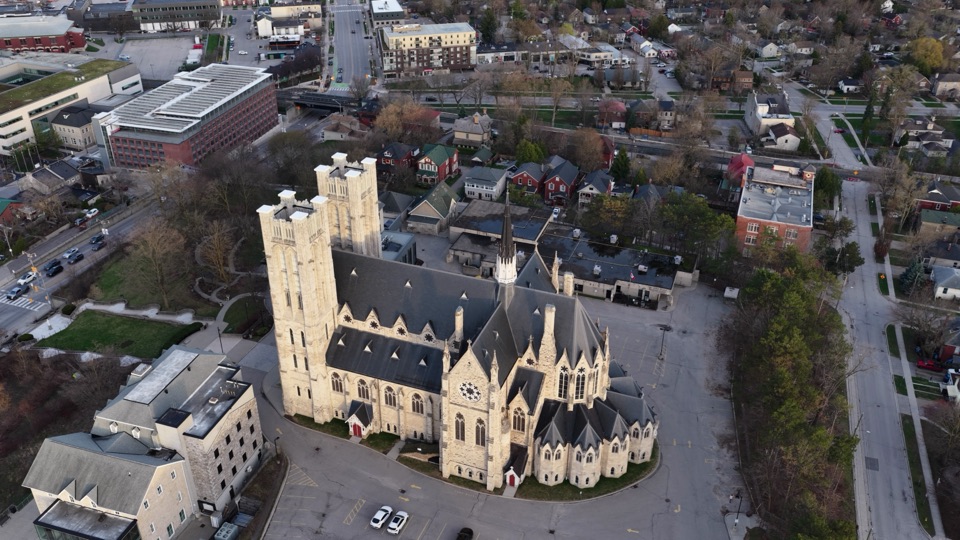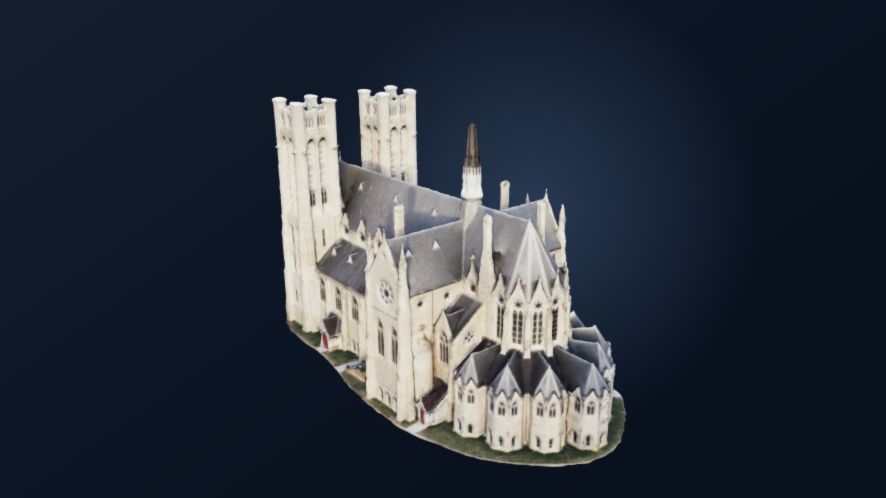
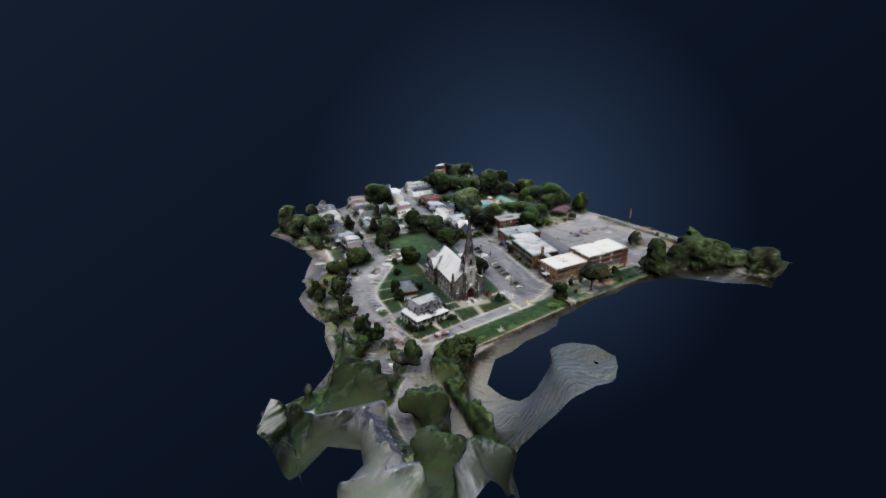
Guelph ChurchHighest-detail heritage model
Loading 3D
Drone inspection workspace
Turn overlapping drone photos or video into detailed 3D models and orthomosaics, ready to inspect right in your browser.
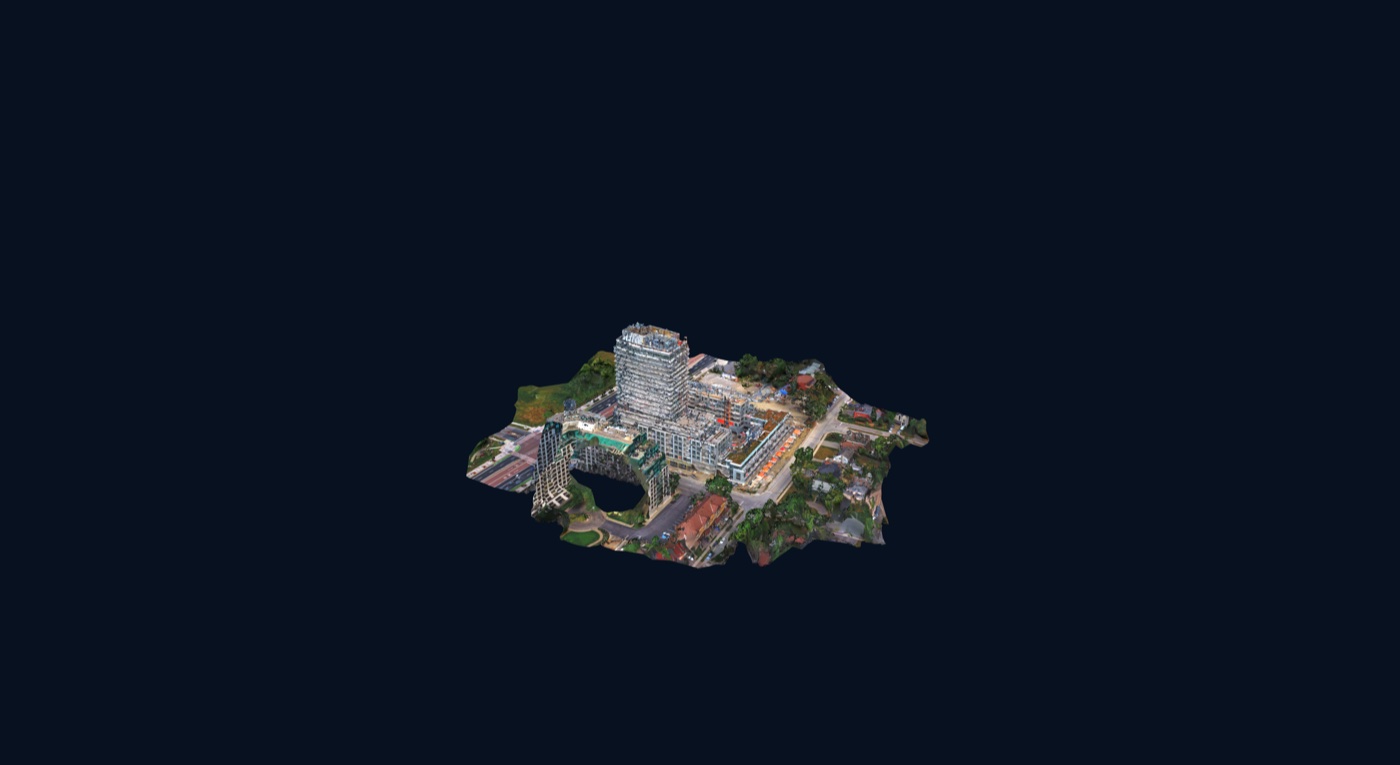
Drag to orbit. Shift-drag or two-finger drag to pan. Scroll or pinch to zoom.
Select the field set, confirm what was accepted, and start only when the project is ready.
This example completes once, showing the exact stage, what just finished, and what comes next.
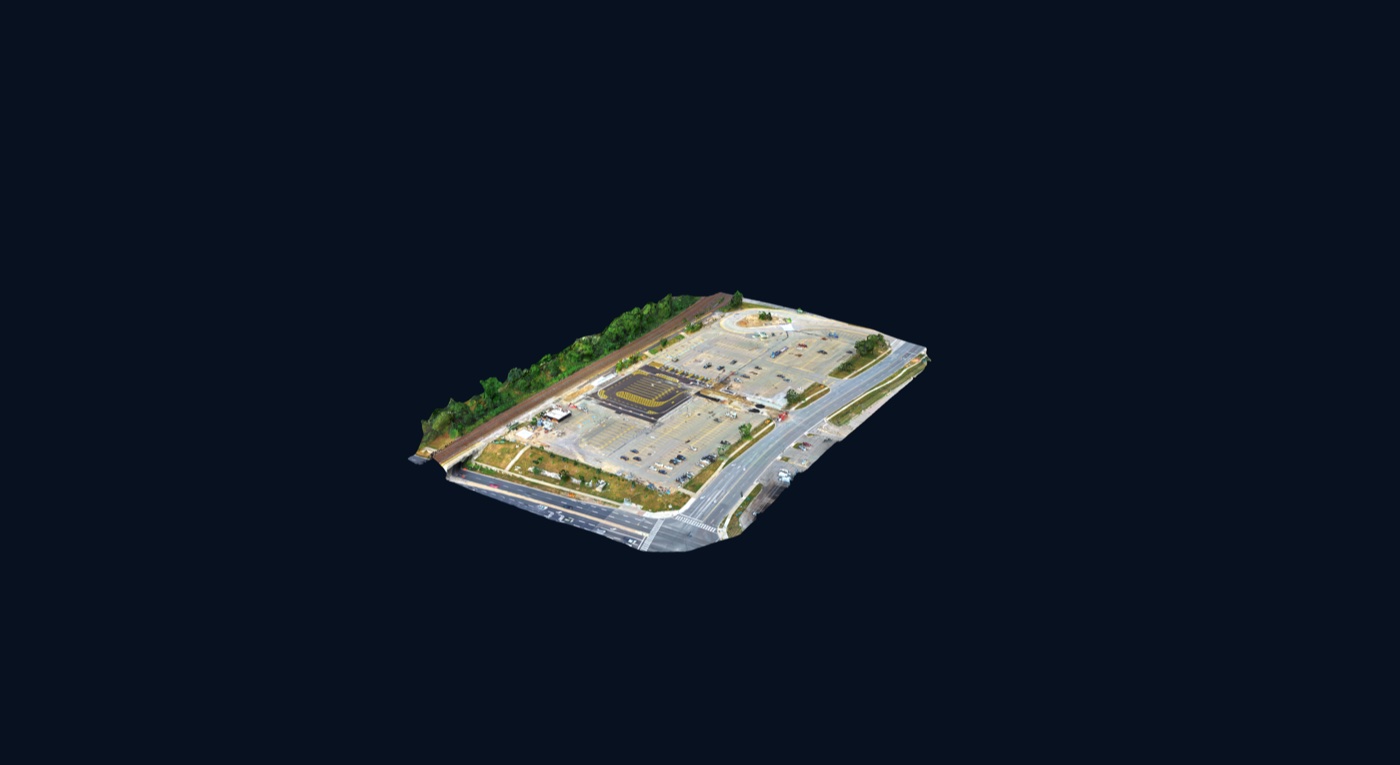
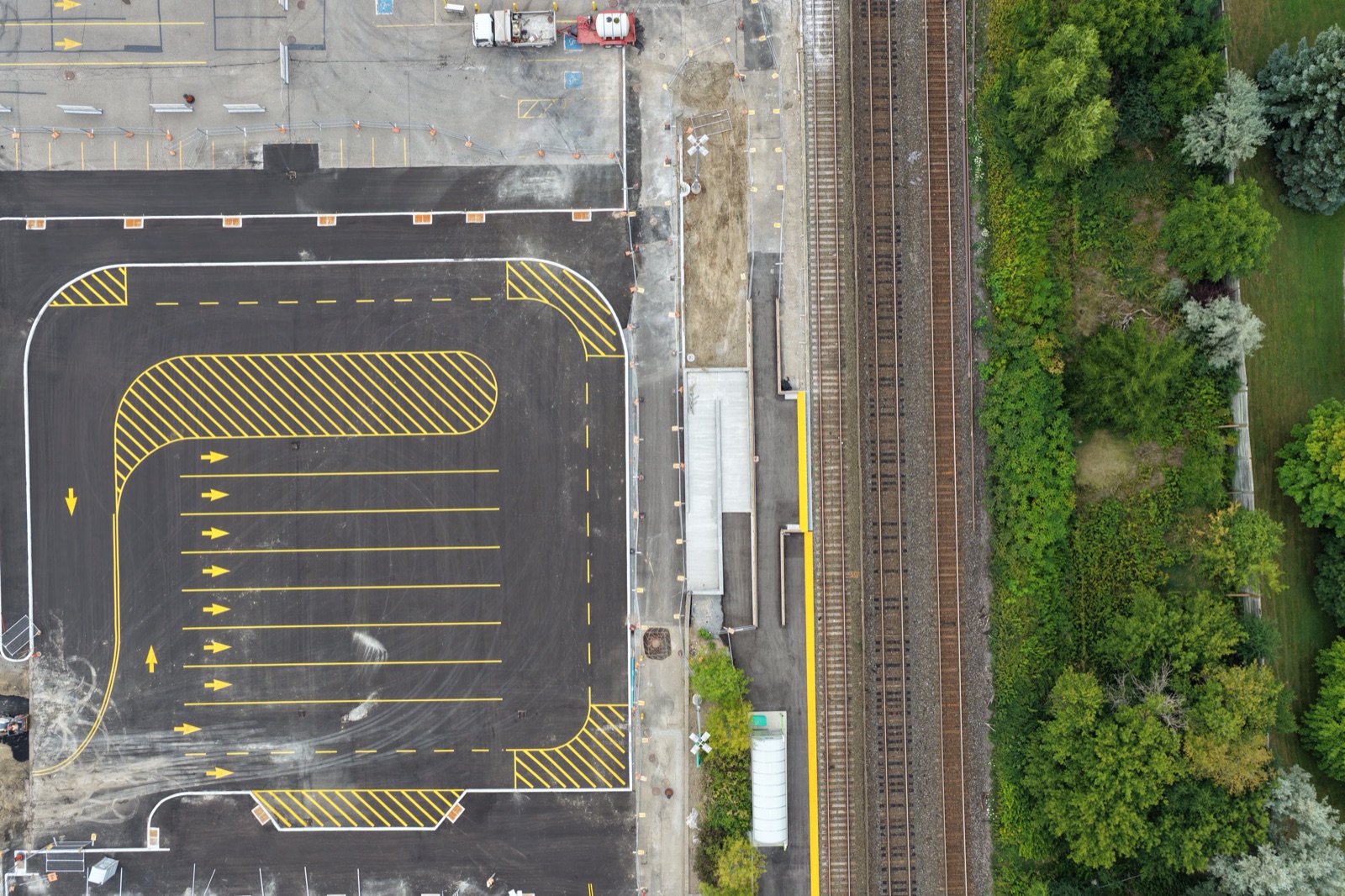
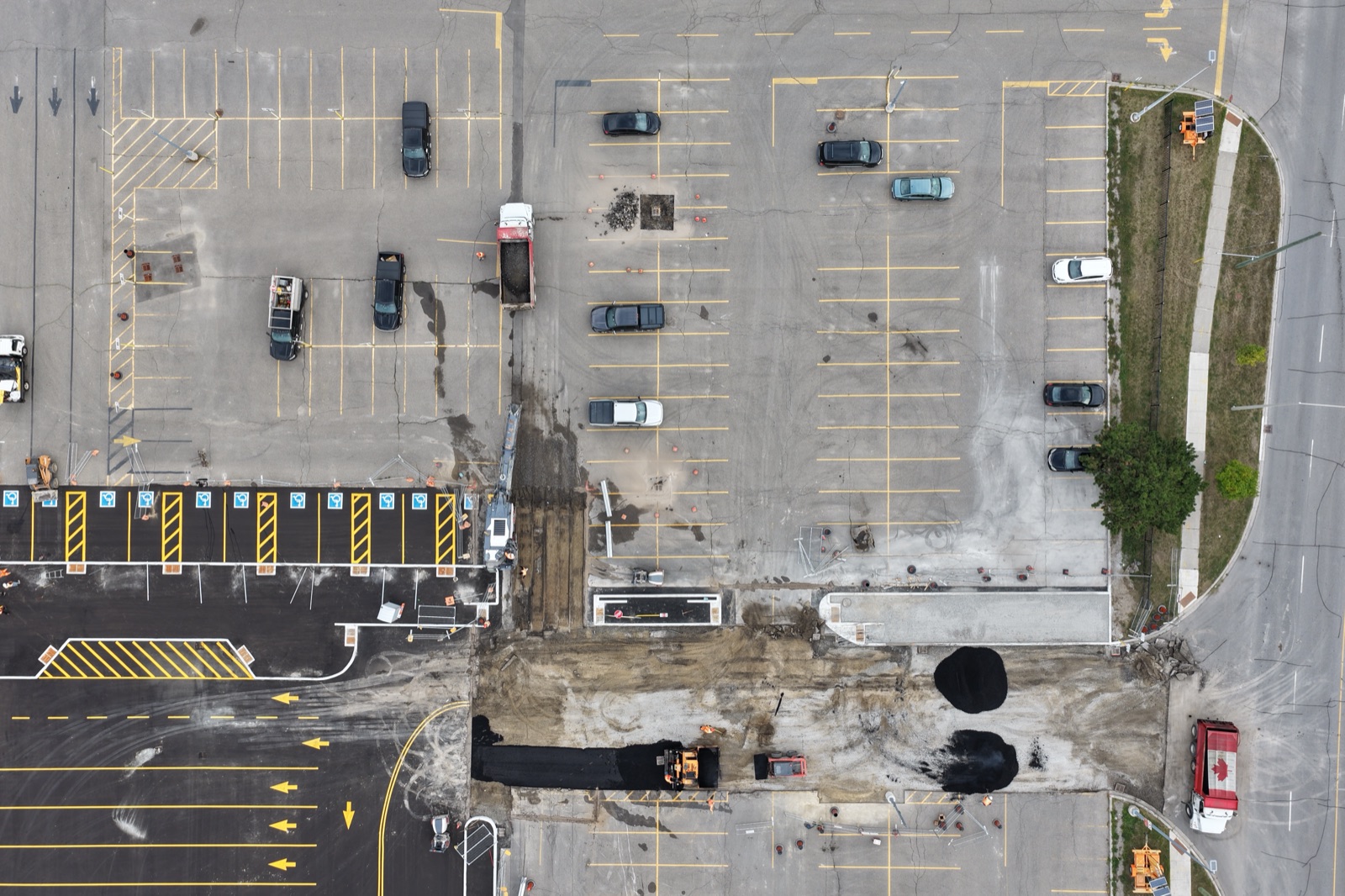
The parking-site image assembles piece by piece as a clear visual of processing progress.
The same parking project becomes an interactive model you can orbit and inspect.
From capture to reconstruction
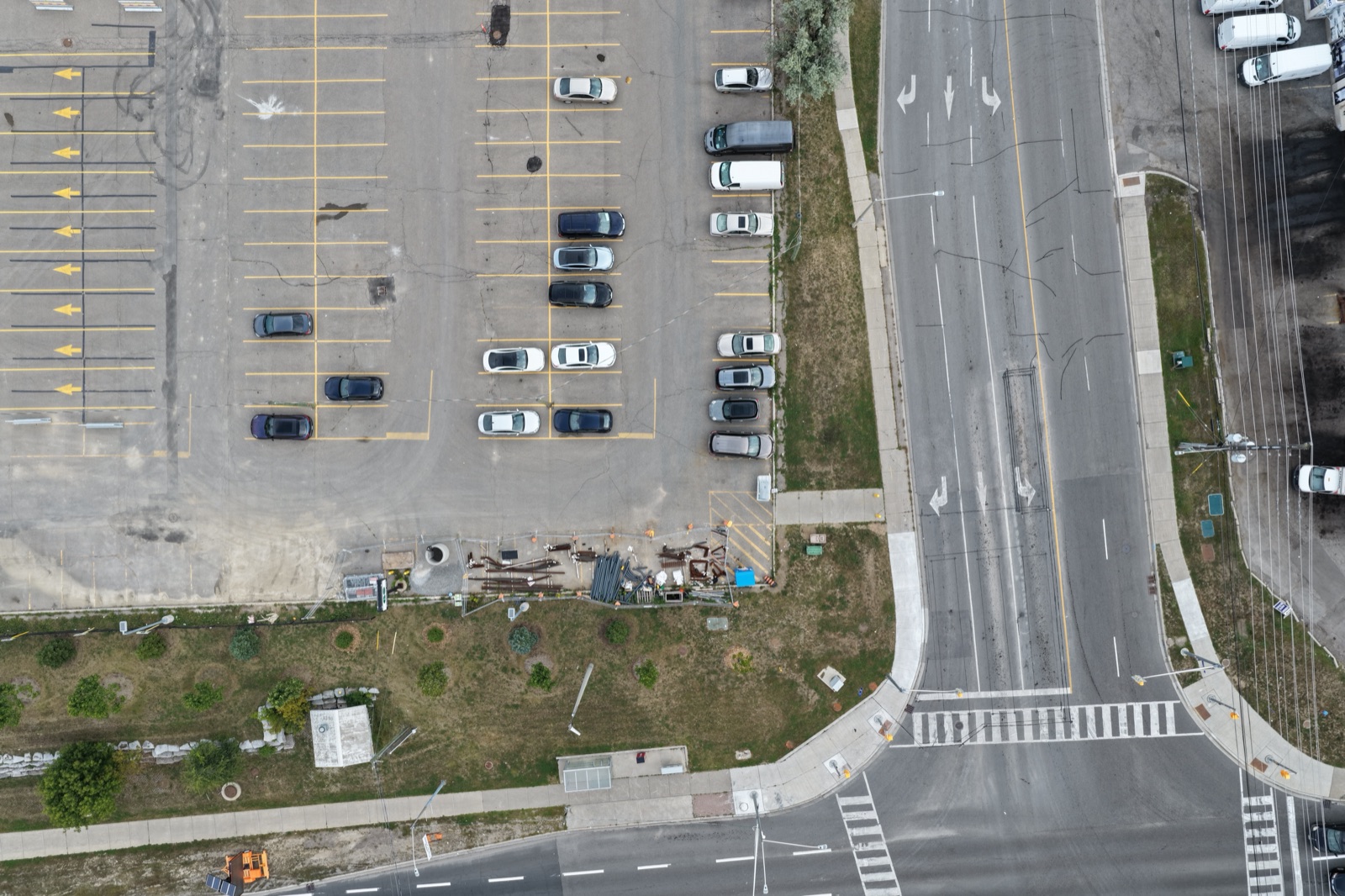
Scroll through one continuous visual sequence: real source photographs, representative alignment, a point field, a forming mesh, and the final interactive Crown model.
Capture
You don’t need a specialized drone. Good coverage and consistent overlap matter much more than the model you fly.
Reconstruct
The mesh animation explains the idea without pretending to expose Crown’s private live processing geometry.
Deliver
The customer can orbit, zoom, pause, reset, and immediately understand the delivered site.
Hybrid processing architecture
The cloud path uses explicit uploads and a versioned job API. The optional local worker accepts opaque selections and fixed operations; neither accepts browser-supplied commands.
Select photos in the browser and approve the upload.
Run in a cloud job, or use the optional local worker.
Progress, results, measurements, and reports return to the workspace.
The browser never uploads merely because files were selected. A separate start action is required. Local mode keeps media on the customer’s computer.
Controlled-beta plans
Free Beta is the first launch stage. Creator and pay-as-you-go checkout availability is shown on each option below.
Free Beta
One invitation-controlled successful project.
Creator
Five weighted processing credits each month.
Pay as you go
For occasional projects.
Sign in with a verified account to purchase when checkout opens.
Standalone browser tool
Local by default Your selected model stays in this browser and is not uploaded by the inspector.
Open a model
Use a static .glb or .usdz up to 500 MB.
The original remains unchanged when you export a cropped GLB.
No model selected.
Your private workspace
Checking whether secure accounts are available…
Enter the eight-character code sent to . No photos can be processed until the address is verified.
Enter your email to request a code, then use it below with your new password. For privacy, we will not say whether an account exists.
Try the interface without creating an account. The demo does not upload photos or save projects.
Your sign-in is protected. Photos are uploaded only after you choose them and press the start button.
Your photo workspace
Choose what you want to make, select your photos, and follow the progress here. No technical setup is required.
Nothing to installProcessing runs on Crown 3D Studio
ACCOUNT PROJECTS
Sign in to save project metadata securely. Source photos are not stored here.
Each approved job is recorded here with its project, operation, and status — never the photos themselves.
You are using the browser-only demo. Sign in to keep your project names and job history for your next visit.
START HERE
Choose your photos and press Start. We will handle the technical work and show you each step.
BEFORE UPLOAD
Safe to leave this page. Processing continues on Crown 3D Studio. A confirmed platform failure restores eligible processing credit according to your plan.
Circle the subject at several heights. Include the roof and every visible side with strong overlap.
Fly an overhead grid with the camera pointing down, consistent altitude, strong forward and side overlap, and GPS. Oblique video frames can create a 3D model, but they usually make a distorted top-down image.
Crown 3D Studio provides automated photogrammetry and visualization outputs. Results are not certified surveys, engineering documents, or legal boundary determinations. Accuracy depends on your equipment, capture method, image quality, overlap, GPS information, environmental conditions, and processing settings. Independently verify results before relying on them for professional, legal, construction, engineering, navigation, safety-critical, or financial decisions.
Checking the development preview limits…
Waiting to begin.
Representative stage visualization. Your exact intermediate reconstruction geometry is not shown.
Your model is still being built. Detailed 3D often takes 1–4 hours, and complex photo sets can take longer. The percentage may stay unchanged during a heavy stage; that does not mean the job is stuck. You can leave this page and return from the same account; processing will continue. Elapsed time: just started
The native workflow is not available from this website yet. Its preserved Mac and Windows engines remain in development; use Crown 3D Studio cloud processing for current jobs.
OPTIONAL LOCAL MODE
Install and connect the worker only when you want supported Mac or Windows hardware to process media locally.
Choose New or Open to use the same project format as the desktop app.
WORKFLOW
Each tool calls the existing native engine.
NATIVE TOOL
The native picker keeps paths out of the webpage.
Settings map directly to the existing engine flags.
RUNNING ON THIS MAC
Waiting for the worker.
LOCAL OUTPUTS
LOCAL WORKER
The secure bridge should listen only on 127.0.0.1.