Crown 3D Inspector
See more. Understand the details.
Open a 3D model in your browser, explore it from every angle, preview a trim and record your observations. Keep your original model unchanged.
Try 3D Inspector ↗Open your own GLB or USDZ, or explore the built-in example.
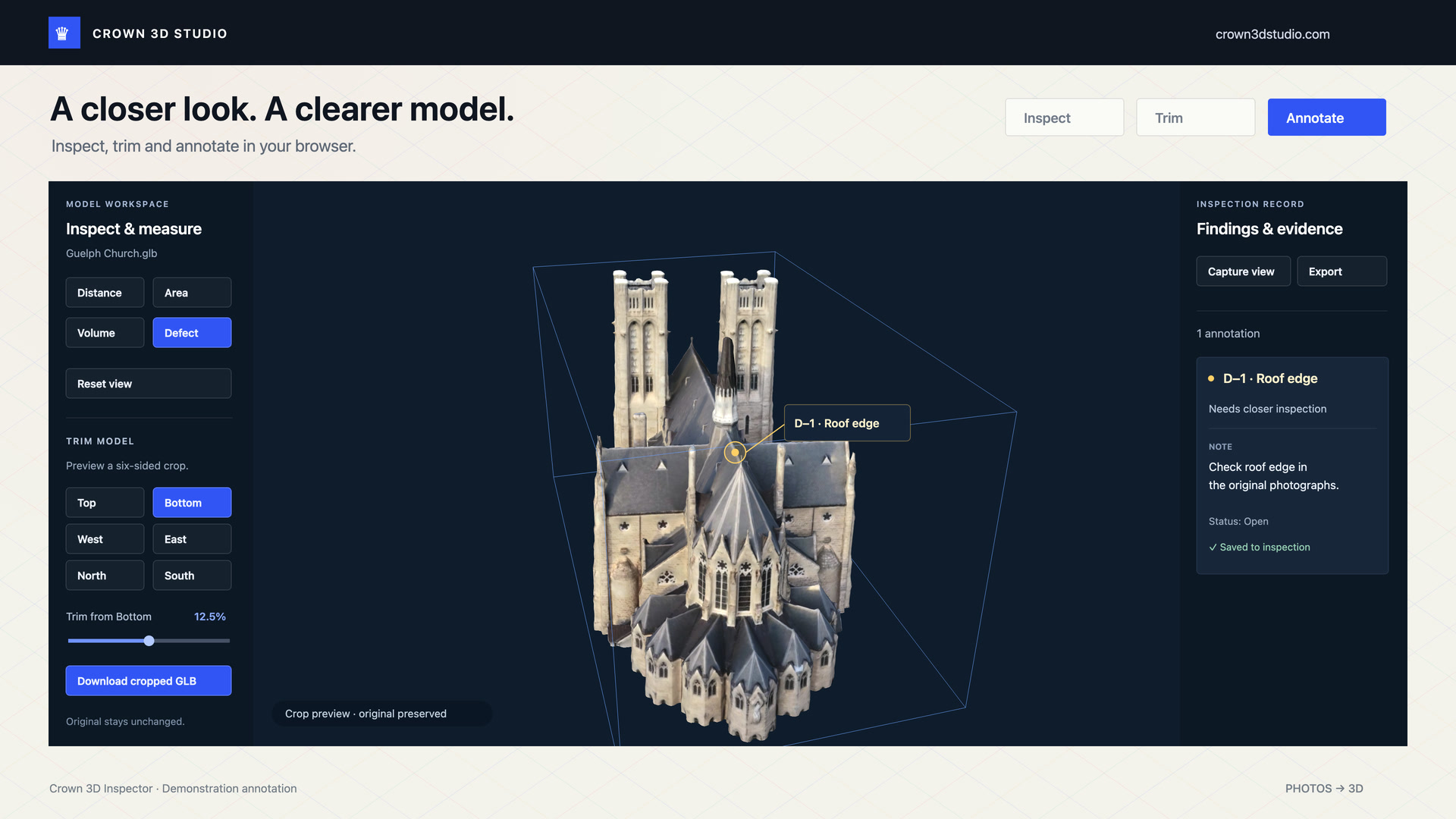
From model to observation
A closer look, from every angle.
Use the model to explore visible details and organize observations. Review the source imagery and site conditions when a finding needs more context.
-
01 / OPEN
Bring in a model
Choose a supported GLB or USDZ, or start with the example. Orbit, pan and zoom to understand the shape and coverage.
-
02 / REVIEW
Focus on the subject
Preview a trim around the area you want to inspect. Adjust the view while keeping the original model intact.
-
03 / RECORD
Keep the useful details
Add observations and export a cropped GLB when needed. Check that any measurement has a reliable scale reference.
Good to know
Your model. Your review.
The standalone inspector works with models you select locally. It does not upload your chosen model.
Open a static model up to 500 MB. Available browser memory and graphics capability can affect what loads smoothly.
Model measurements depend on scale and reconstruction quality. They are not certified survey or engineering results.
Common questions
Before you begin.
Do I need to reconstruct a model first?
You can open an existing supported model or try the built-in example. Crown Studio is available separately for reconstruction from photographs.
Does trimming overwrite the original?
No. The trim is a preview, and exporting a cropped GLB creates a separate file.
Is the image a live tool screenshot?
It is a frame from Crown’s animated inspection demonstration, using an actual reconstructed model and an illustrative annotation.
Ready to explore?